Everything Serfix does for your website, explained.
Serfix researches what your customers search for, writes an expert article about it, and publishes it on your website — automatically, on a schedule you control. This guide walks through every screen with real screenshots, then covers the problems people actually run into and how to fix them.
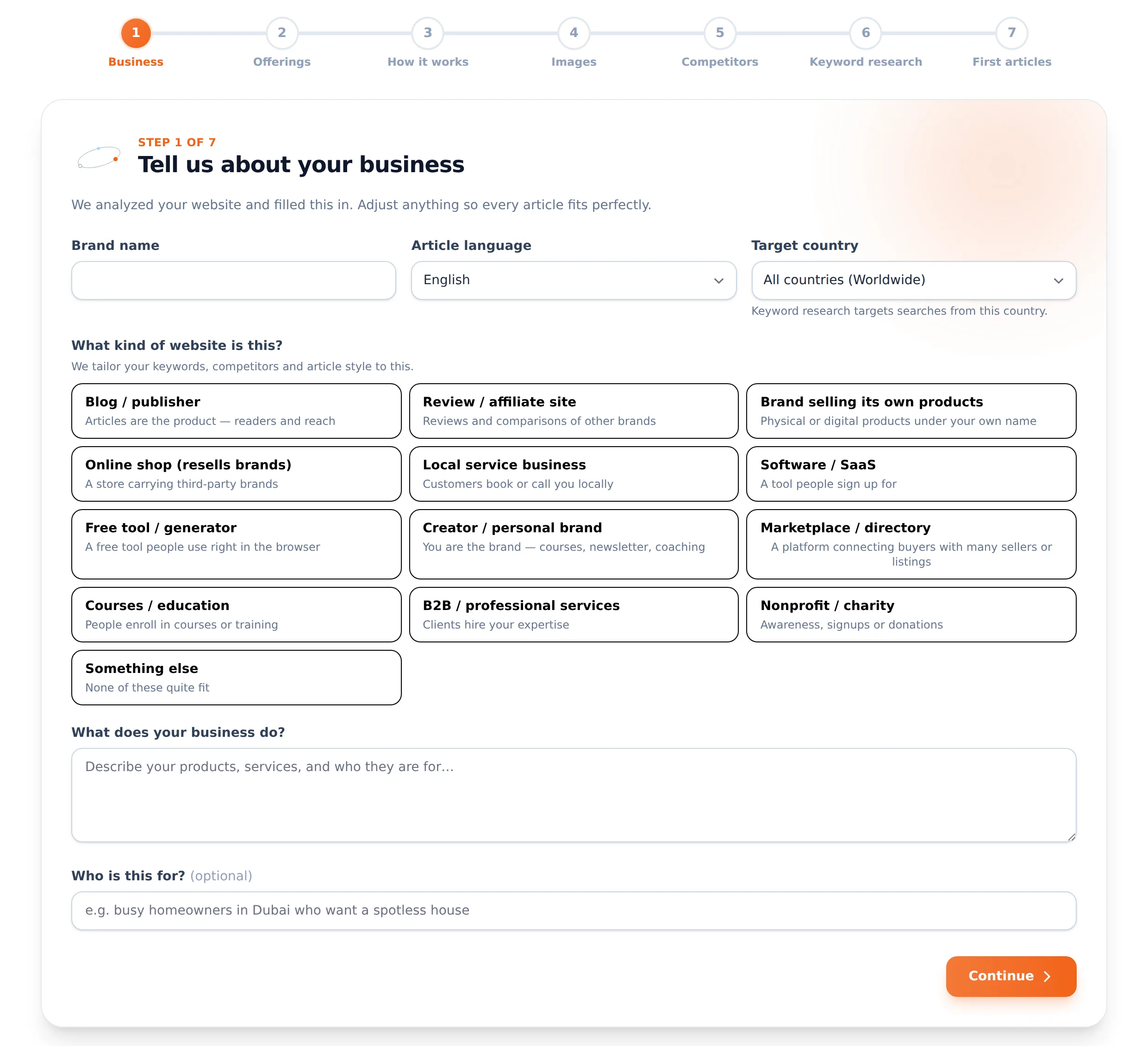
Enter your website address and Serfix reads your site to work out what you do, who it’s for, and what you sell. You then walk through seven short steps — everything is pre-filled, you only correct what’s wrong. The better this profile, the better every article that follows.
Business — confirm your brand name, article language, target country and what your business does. Pick the website type that fits — it shapes your keywords, competitors and writing style.
Offerings — list what you sell and, just as important, what you don’t. Articles will steer readers toward the first list and never promise the second.
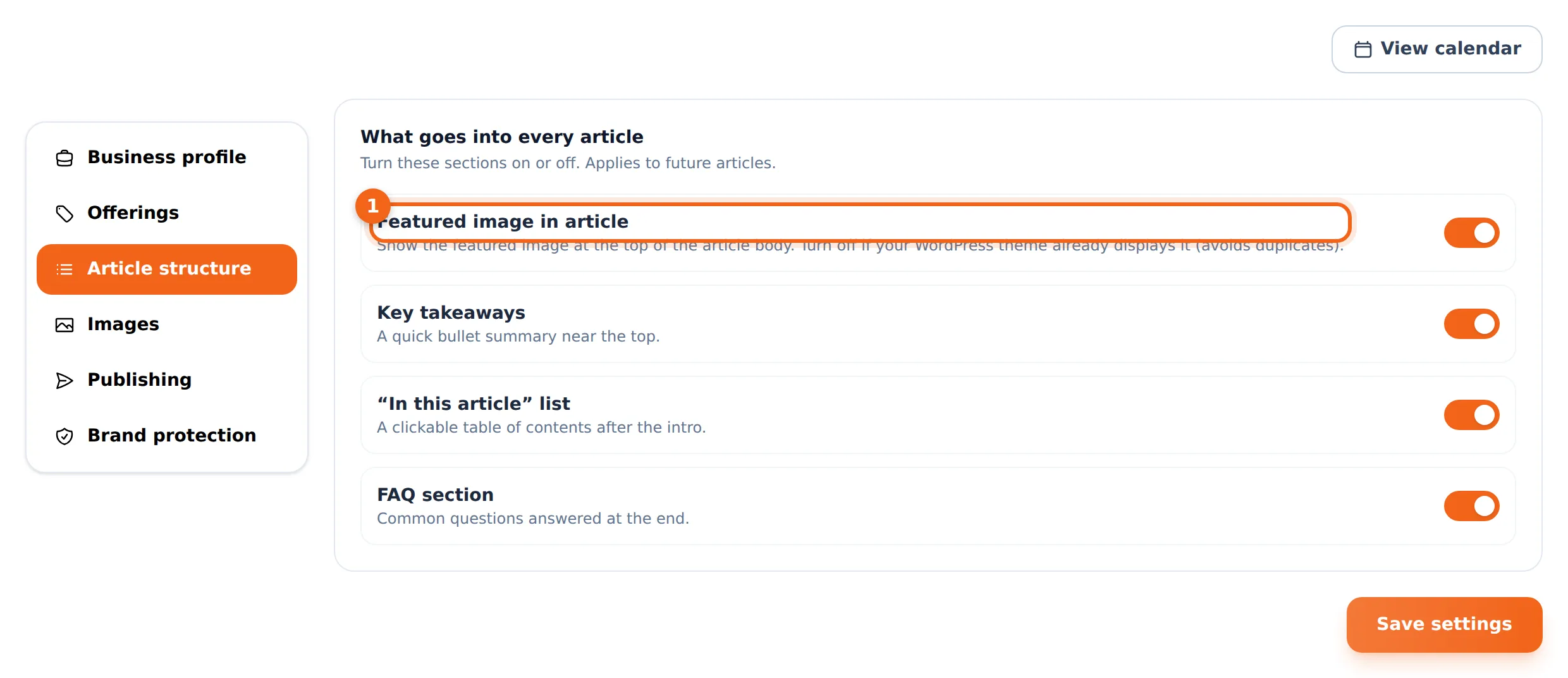
Article structure — choose which sections every article carries: featured image, key takeaways, a clickable “In this article” list, and an FAQ.
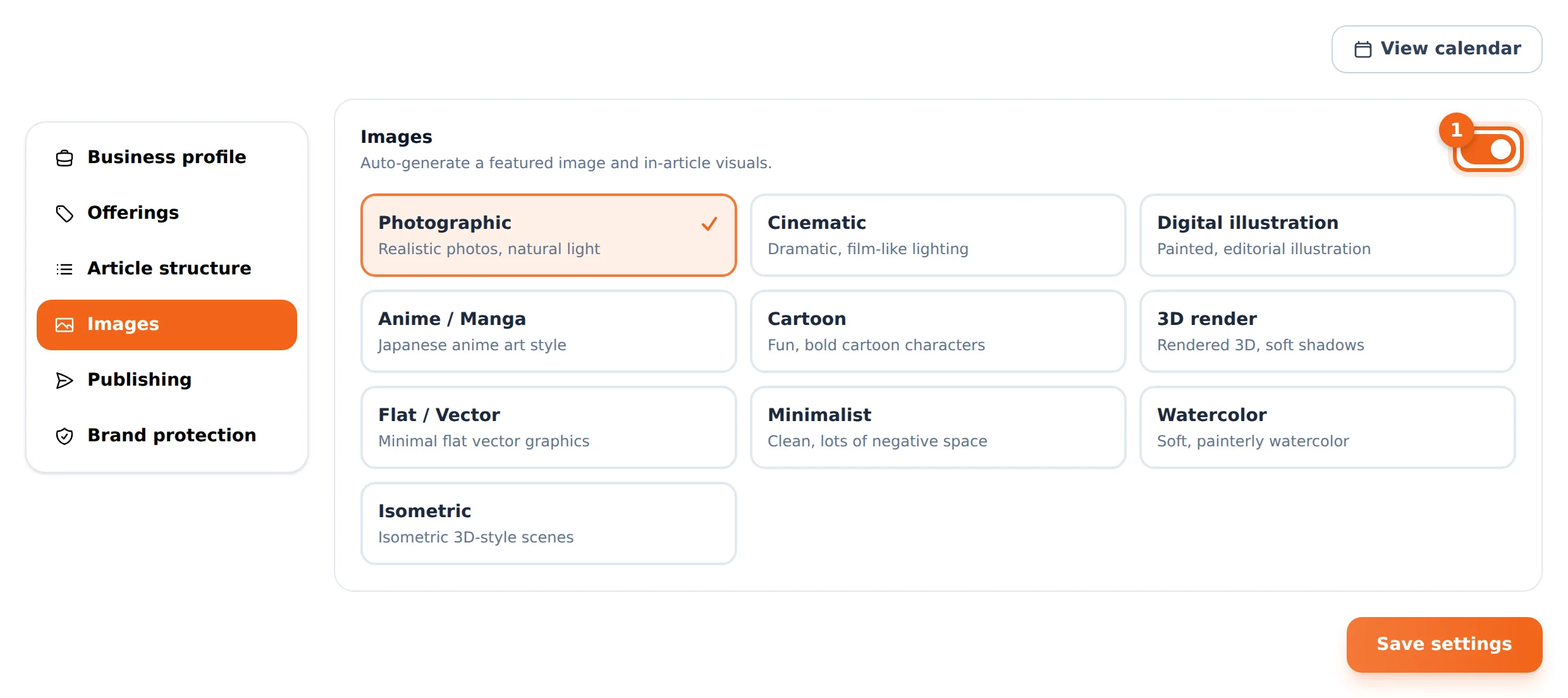
Images — pick a visual style for generated images, from realistic photography to flat illustration — or turn images off entirely.
Competitors — we find who actually competes with you on Google. Remove anyone who isn’t a rival and add anyone we missed.
Keyword research — see the searches your plan is built on: what your audience types into Google, how often, and where you already show up.
First articles — your first month of topics appears on a calendar, ready to write.
Every choice here can be changed later in Content Settings — nothing is locked in.
02
Your content calendar
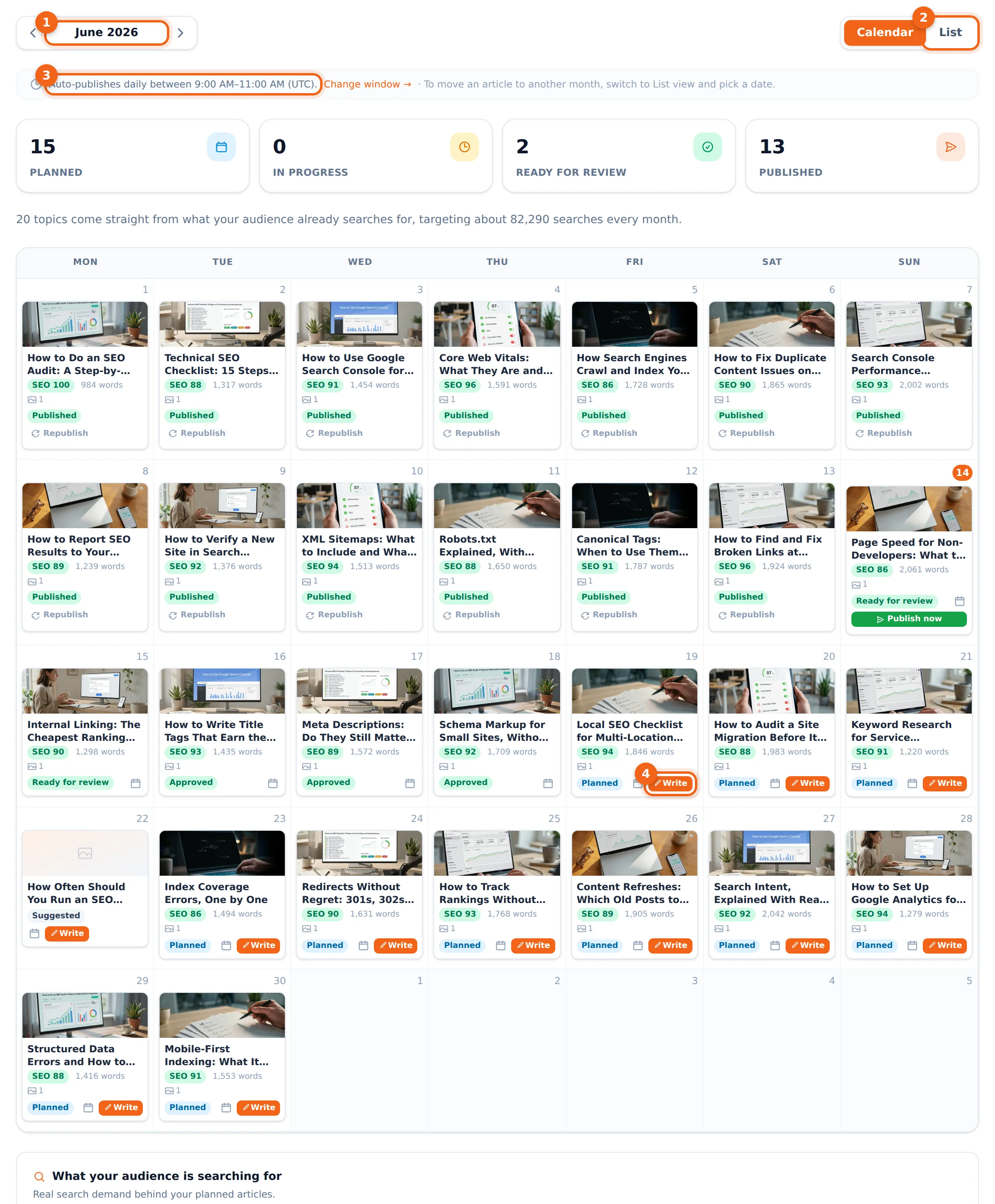
The calendar is home base: a month of planned articles, each on its own day. Cards move through clear stages — Planned, Writing, Ready for review, Scheduled, Published — so one glance tells you what shipped and what’s coming.
1Move between months with the arrows — past months show what shipped, future months show what’s planned.
2Switch between the month grid and a list view. The list is best on a phone and for changing dates.
3Your publish window — articles go live between these hours, in your timezone. Change it any time.
4Don’t want to wait for the scheduled day? “Write” starts an article immediately and shows live progress: research, writing, quality checks, images.
Drag a card to another day to reschedule it, or use the small calendar icon on the card to pick an exact date — including a day that already has an article. Every card shows its quality score, word count and image count before you even open it.
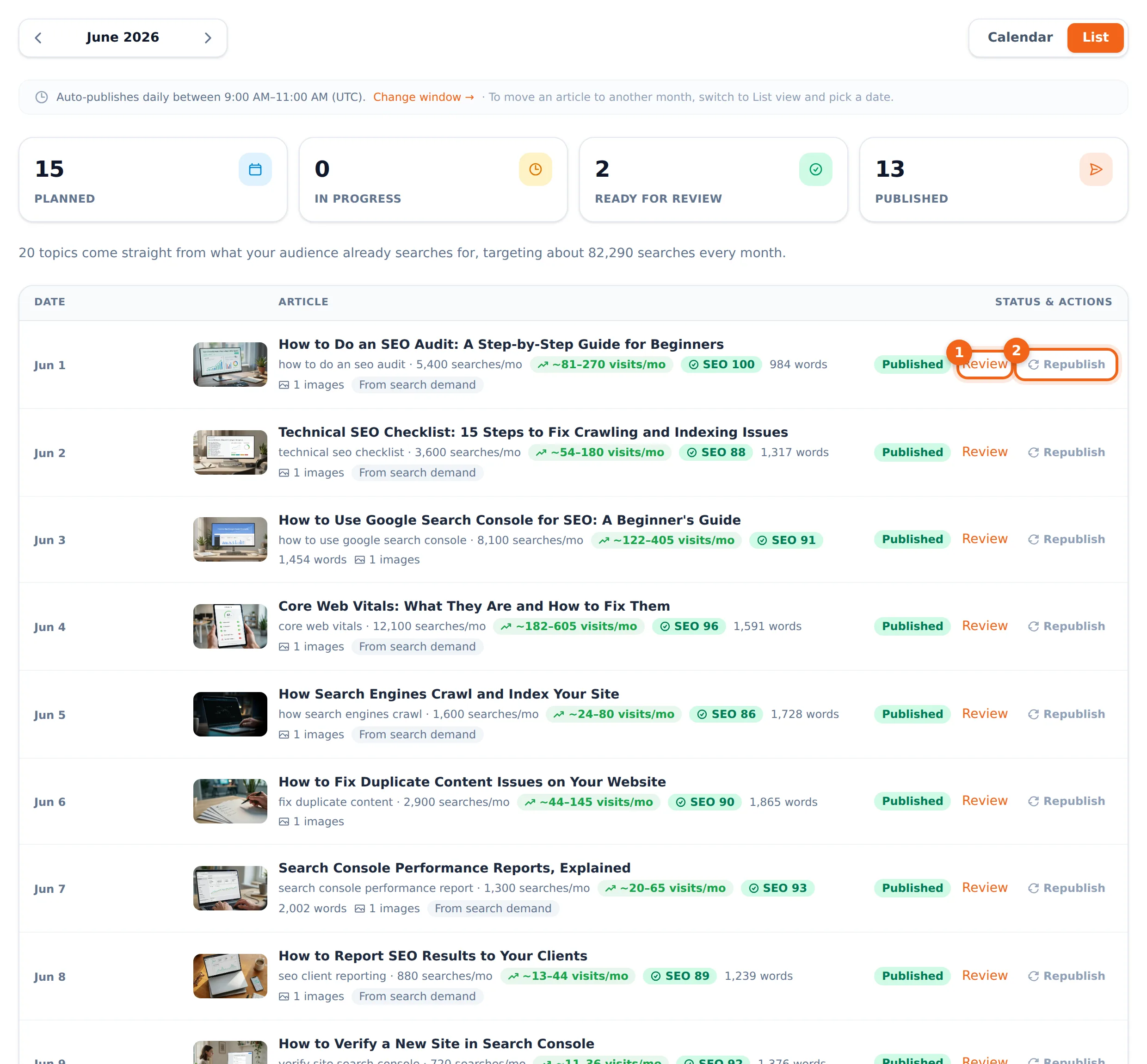
List view: ① Review opens the full article. ② Republish sends an already-published article to your site again — useful after edits or if your site lost it.
Good to know:
each plan includes a monthly article allowance. Articles over the allowance are marked in red and simply wait for the next month — nothing is lost.
03
Review and edit articles
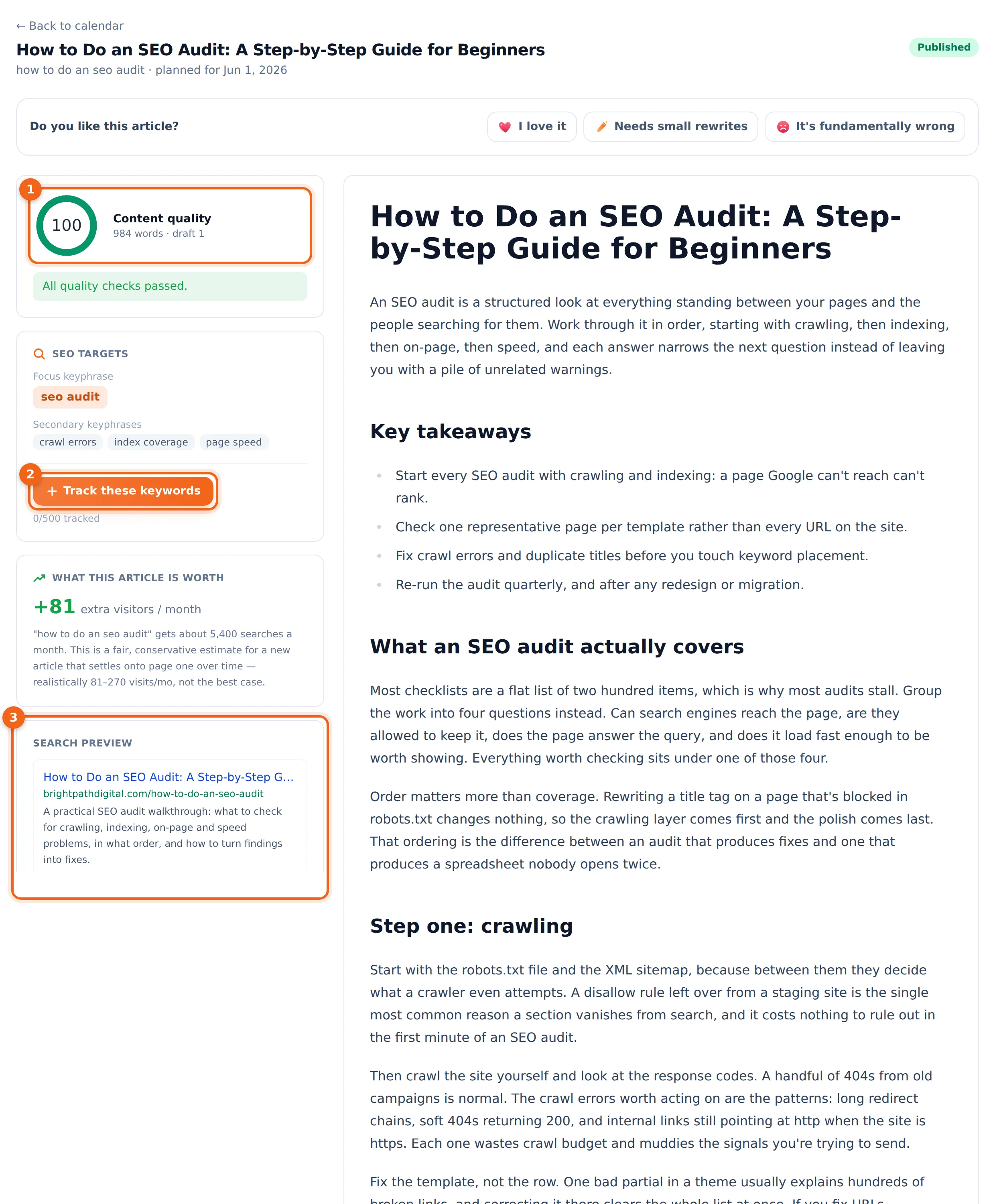
Click any card and you get the full article the way a reader will see it — plus everything you need to judge it in ten seconds: a quality score out of 100, the exact searches it targets, a realistic estimate of the monthly visitors it can bring, and a preview of how it will look on Google.
1The quality score. Every draft is checked against dozens of writing and SEO rules and rewritten until it passes — anything failing is listed here in plain language.
2One click adds the article’s search phrases to your rank tracker, so you can watch the article climb Google week by week.
3Exactly how the article will appear in Google results — title, address and description. All three are editable.
4Open the editor to change anything yourself.
The editor
The editor works like a modern word processor: headings, bold, links, lists, tables and images, editing the article exactly as it will appear. Select any sentence and ask the built-in assistant to rewrite, shorten or expand just that part. You can also replace any image — upload your own, paste an image address, or generate a new one in your chosen style.
Below the editor sit the same search-engine fields professional SEO plugins offer: focus keyphrase, page address, canonical link, and how the article looks when shared on social networks. Serfix fills all of them for you — they’re there when you want control, invisible when you don’t.
Tell us what you think — it changes the next article
Every article carries a quick feedback bar. Use it — it goes straight to our team, and “needs rewrites” or “fundamentally wrong” with a short comment is the fastest way to get the writing corrected for your site.
Hands-off or hands-on — your choice:
with auto-publish on, a finished article waits through a review window (24 hours unless you change it) and then goes live by itself. Prefer to approve everything? Turn auto-publish off and nothing ships until you press Publish.
04
Connect your website
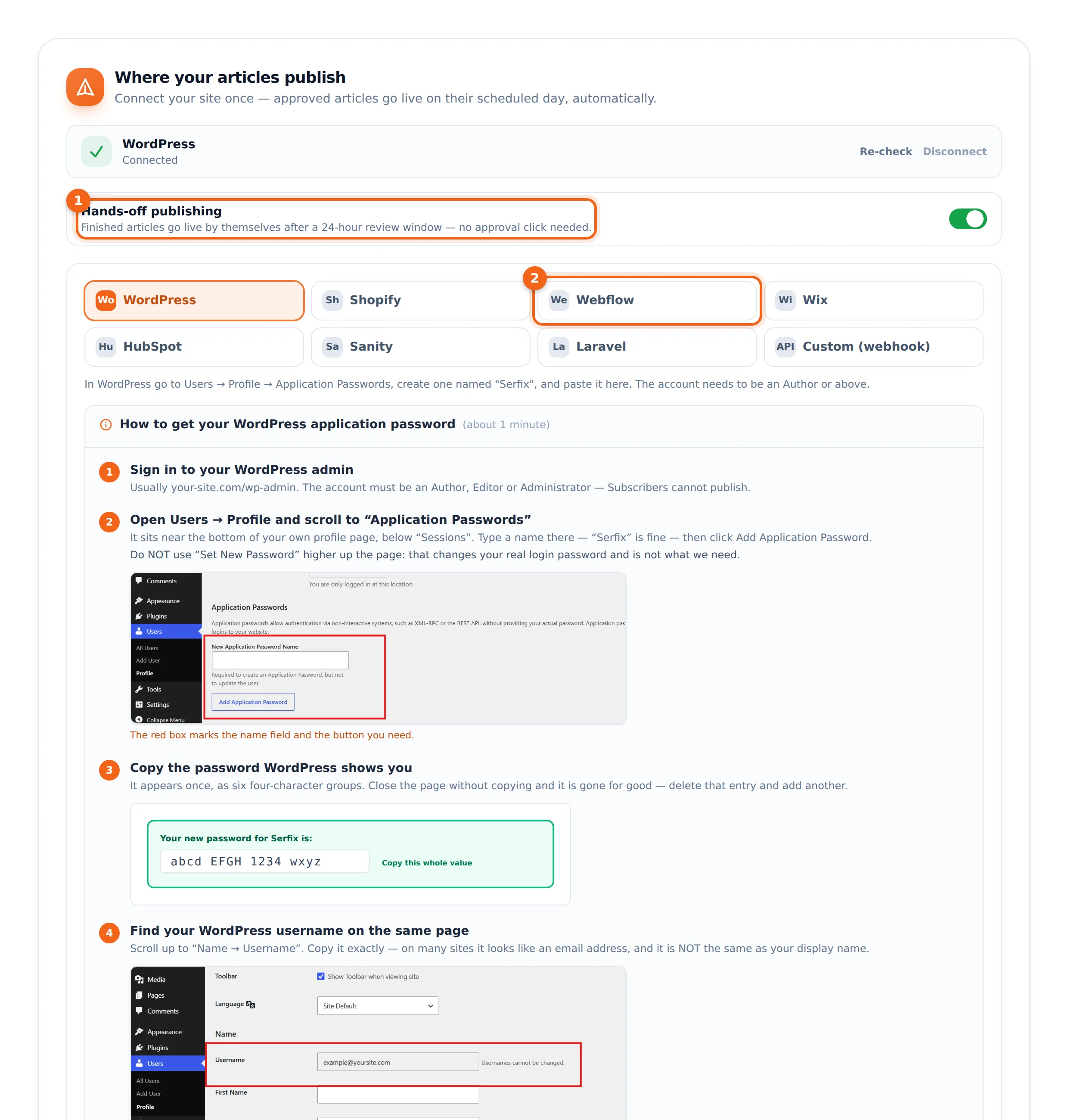
Articles publish straight onto your own website — your domain gets the traffic and the Google authority. Connect once and every approved article lands on your site automatically: text, images, headings and all the search-engine details, formatted for your platform.
1Hands-off publishing — the same auto-publish switch as on the article page, right where you connect.
2Pick your platform — each one comes with an illustrated step-by-step connect guide right on the page, like the WordPress one shown here.
WordPress
Connects with an application password — a special password WordPress generates that never exposes your real login. Articles arrive as normal posts with the featured image set.
Shopify
Publishes into your store’s blog. If you run several blogs, you choose which one during connect.
Webflow
Publishes into the CMS collection you choose, mapping the article into your collection’s fields.
Wix
Publishes into your Wix blog, with images imported into your Wix media library.
HubSpot
Publishes into your HubSpot blog as draft or live — your choice during connect.
Sanity
Creates a post document in the dataset you pick, ready for your site to render.
Medusa
For Medusa stores: we provide ready-made files that add a blog to your store — paste them in once and articles publish automatically, with blog pages for your storefront included.
Laravel
A small package for your developers — articles arrive at your site over a signed, secure connection.
Custom (webhook)
Works with any platform: we send each article to an address your developer provides, cryptographically signed so only Serfix can post to it.
Prove the connection actually works
For custom connections there’s a built-in tester: it sends a complete sample article — every field filled in — through the exact same path real articles take. You can point it at a test address first, so your developer can inspect the payload without touching your live site.
After publishing:
Serfix confirms the article is really live on your site, asks Google to index it if your Search Console is connected, emails you a “your article is live” note, and starts tracking its rankings — all automatic.
Keyword ideas that never run dry
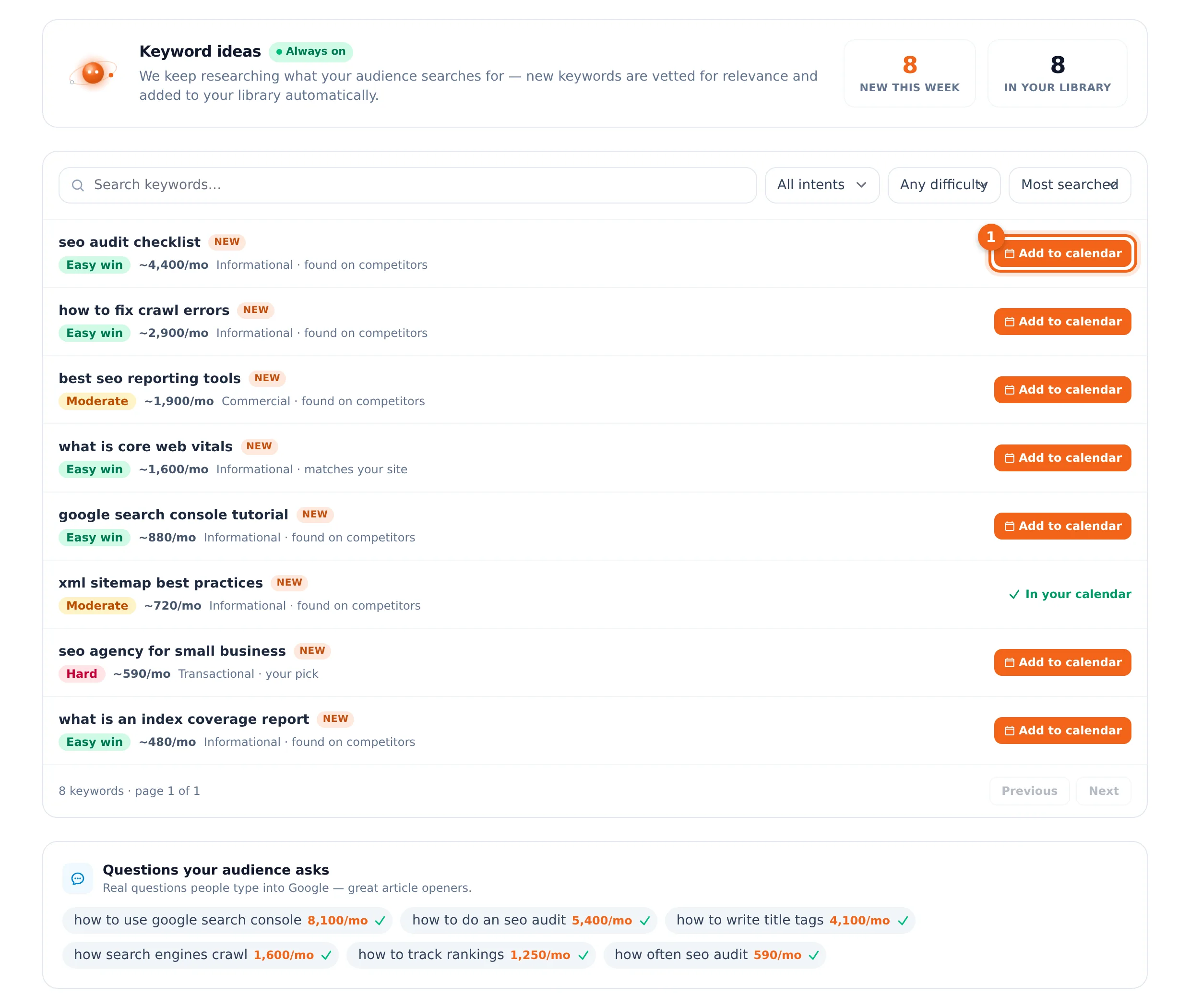
The Research page is a live feed of article opportunities: searches your audience already types into Google, refreshed continuously. Each one shows how many people search it monthly and — because difficulty is measured against your site, not a generic average — whether it’s an easy win for you specifically.
① Add to calendar shows you the available days — pick one and the article is planned. Full months roll into the next month automatically.
Filter by intent (informational, commercial, transactional), by difficulty, or search within the list. The “Questions your audience asks” strip at the bottom shows real questions from Google — each one a ready-made article.
Track your rankings — and what they’re worth
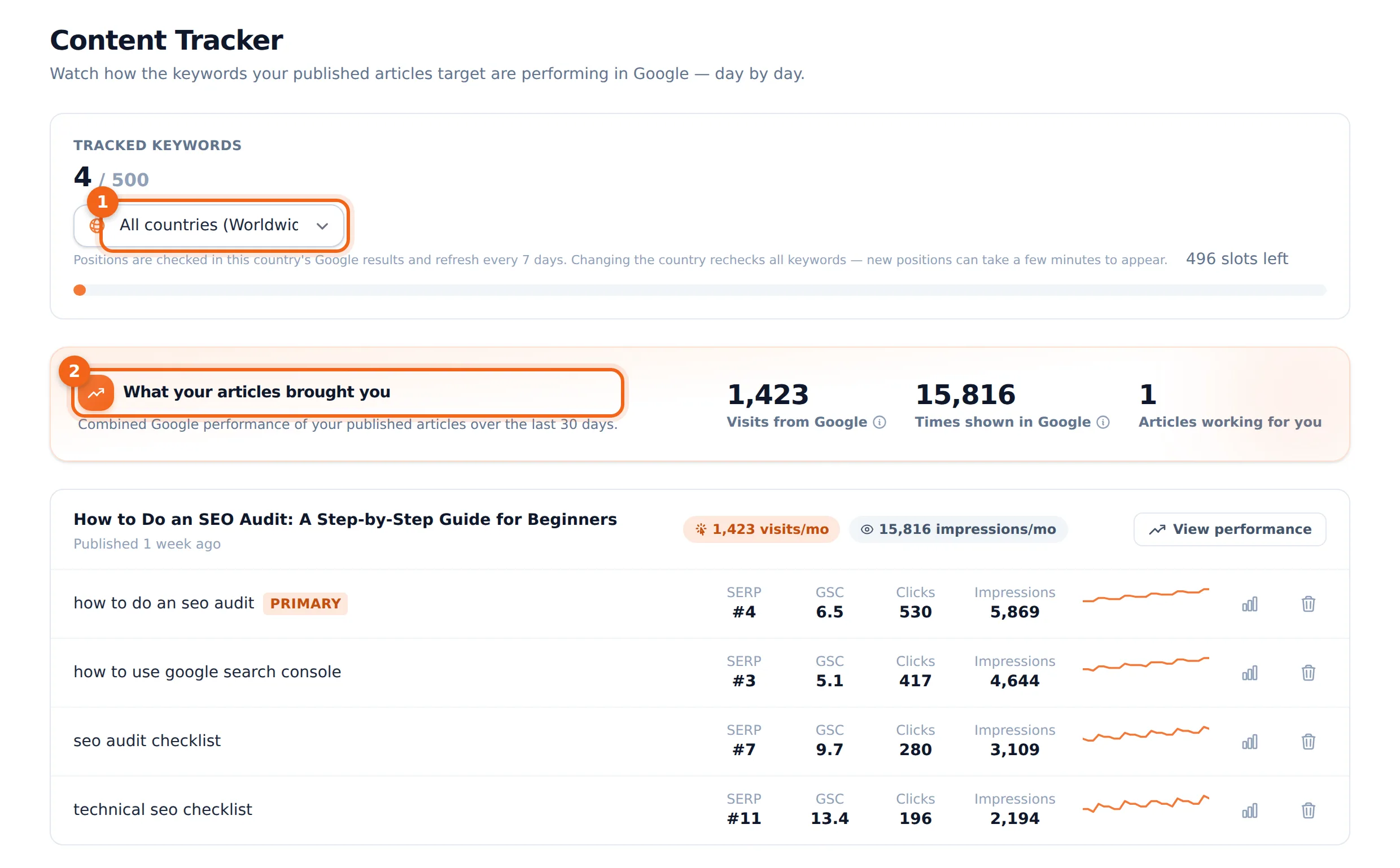
The Content Tracker answers the only question that matters: is this working? It watches where your articles rank in Google for their target searches, how many people saw them, and how many clicked through — updated from Google’s own data.
1Choose the country whose Google results matter to you. Positions are re-checked every 7 days — changing the country re-checks everything immediately.
2The headline: combined visits and appearances your published articles earned from Google in the last 30 days.
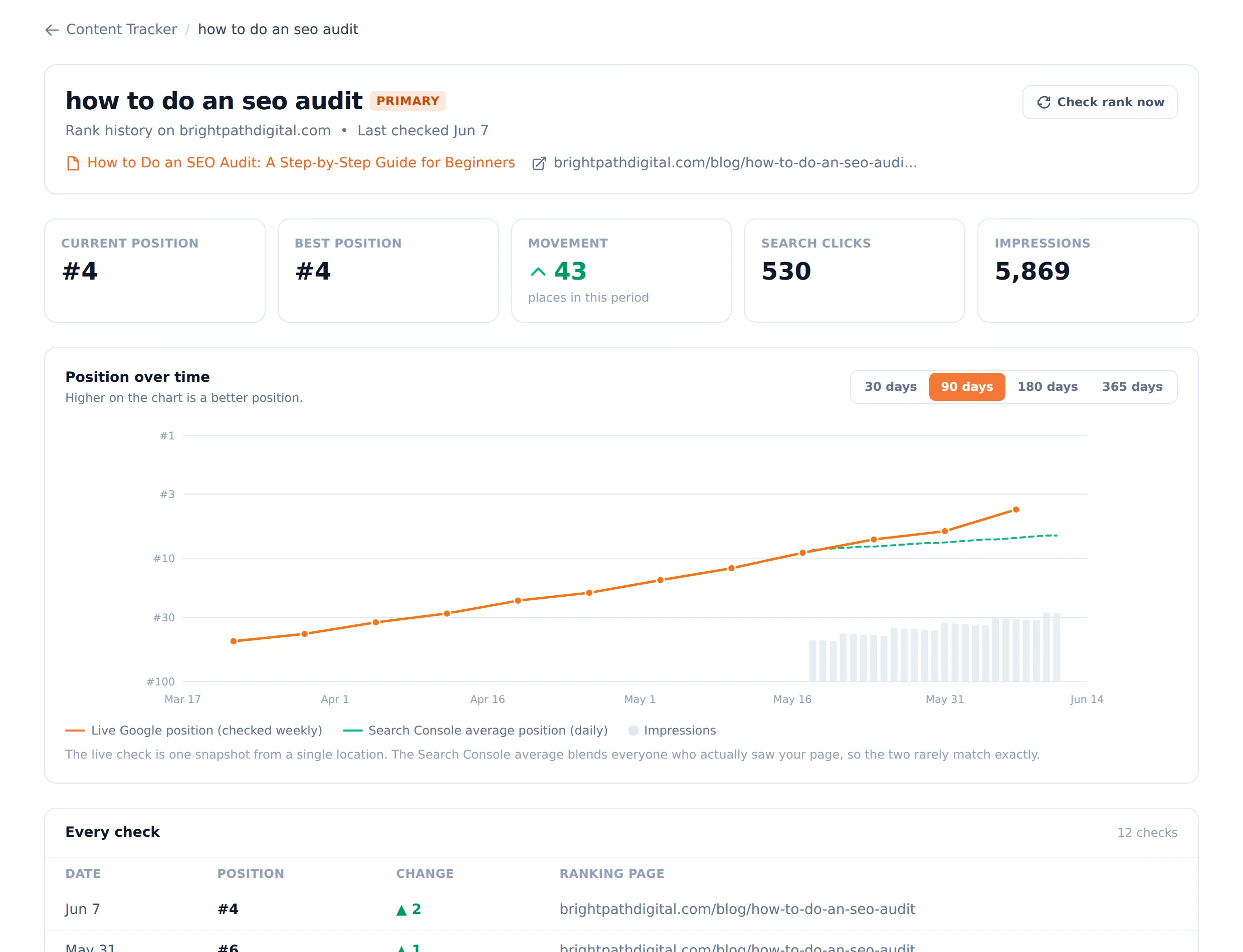
Under each article you’ll also find the extra searches it turned out to rank for — phrases you never targeted. One click tracks any of them. Click a keyword to open its full history: a chart of its climb, week by week, with the exact page that ranks.
You’ll hear about the wins:
when your keywords move up meaningfully — first page, top 3, big jumps — Serfix emails you a short digest. No noise, just milestones.
Tune every article from one place
Content Settings is where you shape what Serfix writes — six tabs, each applying to every future article. Nothing here requires a developer.
Business profile — your description, article language and target country. Rewrite the description any time your positioning changes.
Offerings — the “we sell / we don’t sell” lists that keep articles honest about what you offer.
Article structure — switch the featured image, key takeaways, table of contents and FAQ sections on or off.
Images — turn generated images on or off and pick one of nine visual styles.
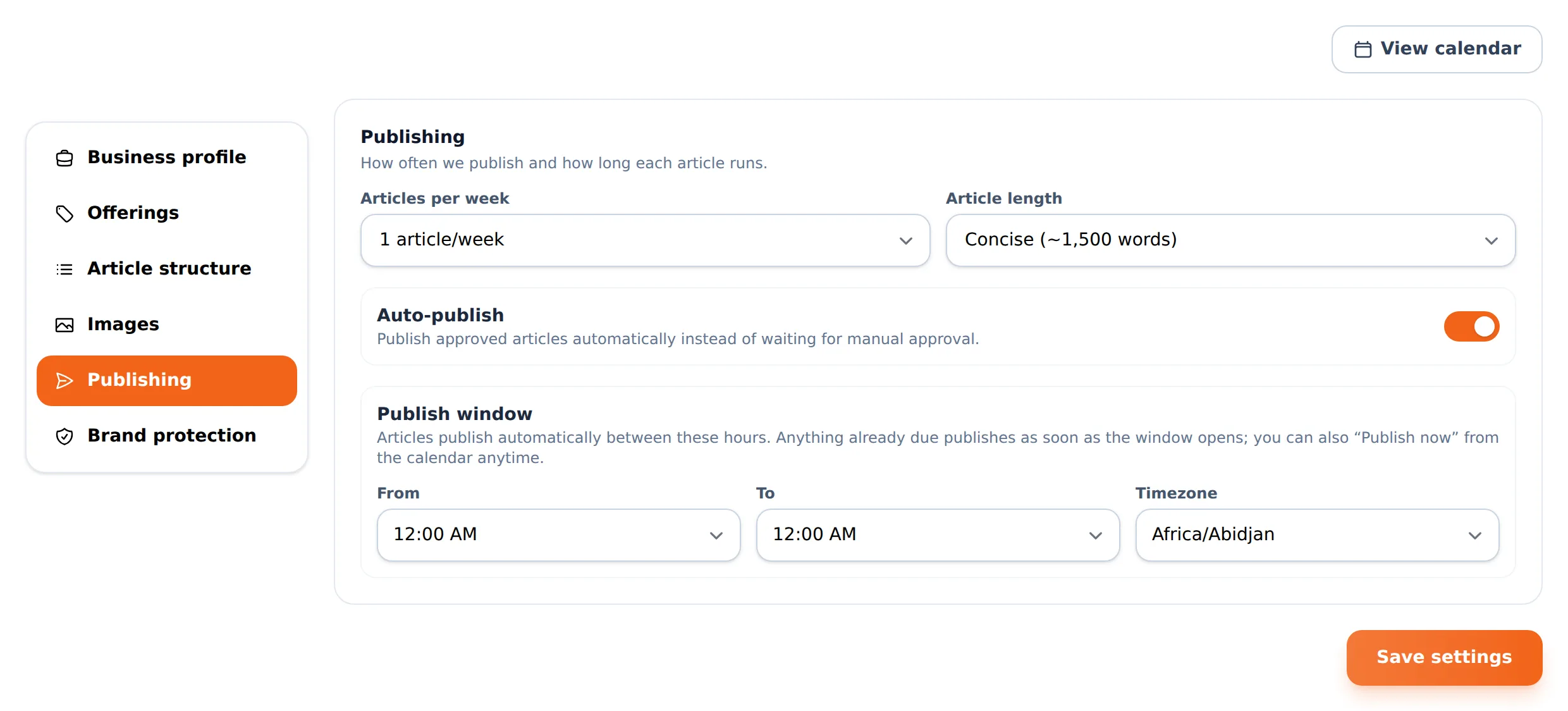
Publishing — articles per week, article length, the publish window, and the auto-publish review period.
Brand protection — controls whether competitors may ever be named in your articles, and how strictly.
① The “Featured image in article” switch — turn it off if your theme already shows the featured image and you’re seeing it twice.
Auto-share to social
Connect your Facebook page, X account or Pinterest and every article that goes live on your site is shared there automatically — the real link on your domain, with the featured image. Set it up once under Auto-share in the menu; posts only ever use the article’s live address, never a draft.
Get help fast
Support lives inside the app. Open a ticket, write your question — with formatting and links if you need them — and every reply lands both in the app and in your email inbox. Answer from either place; it’s one conversation. Bug reports you file with the bug button become tickets automatically, so nothing gets lost.
Common problems, solved
The issues clients actually hit, with the fix for each. If yours isn’t here, open a Support ticket — that’s what it’s for.
Connecting WordPress
“Could not verify” when connecting
Use an Application Password, not your normal login password. In WordPress go to Users → Profile → Application Passwords, create one named “Serfix”, and paste it with the spaces — they’re part of the password. The username is your WordPress username (often looks like an email), not your display name.
Verified fine, but publishing fails
The WordPress account needs to be an Author, Editor or Administrator — Subscribers and Contributors can’t publish posts. Also check that a security plugin isn’t blocking the WordPress connection (REST API): whitelisting “application passwords” or the /wp-json path in your security plugin fixes it.
The featured image shows twice on my posts
Your theme already displays the featured image above the post, and the article body includes it too. Turn off Content Settings → Article structure → “Featured image in article” — future articles will carry the image only where your theme puts it.
Connecting Shopify, Webflow, Wix, HubSpot or Sanity
Shopify: “invalid token” or nothing publishes
The access token must come from a custom app in your Shopify admin with permission to read and write your online store’s blog content, and the store address must be the one ending in .myshopify.com. If your store has several blogs, re-check the connection and pick the right blog when asked.
Webflow: connected, but the article’s link shows a 404
Your CMS collection needs a template page designed and published in Webflow — until it exists, items in that collection have no public page. Also make sure the collection has a rich-text field for the article body; we’ll tell you during connect if it doesn’t.
Wix: “blog not available” during connect
The Wix Blog app must be installed on your site (Wix → App Market → Wix Blog). Connect again after installing, and pick the author the posts should appear under.
HubSpot: articles arrive but stay drafts
Two things to check: your HubSpot blog needs an author (we create one if we can, but some accounts restrict this), and the connection’s “publish live” choice controls draft vs live. Re-check the connection and choose live publishing if that’s what you want.
Sanity: connected, but I can’t see the articles on my site
Articles are created as documents in your dataset — your site decides how to render them. Ask your developer to confirm the document type matches what your site queries. They’ll find each article in your studio, fully populated.
Medusa: the connection test fails
A “route not found” message means the receiver files from the setup guide aren’t deployed (or Medusa wasn’t restarted after adding them, or the migration wasn’t run). A “signature” message means the SERFIX_SECRET on your Medusa server doesn’t match the signing secret in Serfix — the two values must be identical.
My website isn’t one of these
My site is built with Hostinger Horizon, and I can’t connect it
Automatic posting works by adding the post to your website for you, which needs your site to offer a way in for outside tools. Site builders like Hostinger Horizon build and host the page themselves and don’t offer that, so no tool can post into them automatically. You have two good options, both below — the first keeps everything automatic.
Best fix: add a blog to your existing site (still fully automatic)
Most hosting plans already include WordPress at no extra cost. Set it up on an address like blog.yourdomain.com, then connect it here under Settings → Publishing. Your existing site stays exactly as it is — you just link to the blog from your menu — and you get the whole service back: articles published on schedule, images added, SEO fields filled in, and every new post submitted to Google. If you move your main site later, the blog comes with you.
Second option: publish by hand in about a minute
Open any finished article and use “Take it elsewhere” in the right-hand column: Copy HTML, Copy Markdown, or download the file. Paste it into your site’s page editor. Most builders have an HTML or embed block — paste the HTML there and it keeps your headings, links and images. Everything before that step still runs automatically.
If I paste articles myself, what still works?
Everything except the final step. We still research topics, write and illustrate the articles, score them and keep your calendar. Two things become manual: the article won’t be marked as published here (so use it as your to-do list), and rank tracking won’t start on its own — open the article and use the tracking panel, or add the keyword in the Tracker, and positions are followed from then on.
Squarespace, Framer, a custom-built site — same answer?
Yes. The question is always whether your site offers a way for outside tools to add posts. If it does, tell us what you use and we’ll look at supporting it. If it doesn’t, the blog-subdomain route above is the reliable way to keep publishing automatic.
Custom webhook / Laravel connections
“Verified” but articles never appear on the site
Verification proves your endpoint answers; it doesn’t prove it saves articles. Use the webhook tester to send a full sample article, then check whether it appears. If your endpoint answers OK but drops the data, your developer will see exactly which fields arrive in the sample payload.
How does my developer secure the endpoint?
Every delivery is signed with your connection’s secret. The receiver should verify the signature and answer with a success status; replying with the article’s final address lets Serfix confirm the article is live and start tracking it.
I want to test without touching the live site
The tester’s address field is editable — point it at any test address (a request-inspection service works well). It only affects the test; your saved connection is untouched.
Images
I don’t want images at all
Content Settings → Images → switch off. Future articles come as pure text.
The images feel repetitive or off-brand
Pick a different style under Content Settings → Images — nine styles from photography to watercolor. For a single article, open it in the editor and replace any image: upload your own, paste an image address, or generate a fresh one.
An article published without its images
Images are finalized just before publishing; if you hit “Publish now” during generation the text ships first. Use Republish on the calendar once the card stops showing “Finalizing images” — the article updates in place on your site.
Publishing and scheduling
An article missed its scheduled day
Articles publish inside your daily publish window. If the window was already over when the article became ready (or approval came late), it ships as soon as possible afterwards. Check the window under Content Settings → Publishing.
I edited an article after it was published
Press Republish on its calendar card — destinations that already have the article receive the updated version in place, same address.
Some cards are red — “Over monthly limit”
Your plan writes a fixed number of articles per month; red cards are queued beyond that. They’ll write next month, or you can move them there yourself — or upgrade the plan if you want more per month.
How do I move an article to another month?
Switch to List view, pick a new date next to the article and save. Any future date works.
Rankings and data
The tracker says “Checking…” forever
First checks run within a few minutes. If you just changed the tracking country, every keyword re-checks — give it a few minutes and refresh.
Positions look different from what I see in Google
Google personalizes results by location, history and device. The tracker checks neutral results from your chosen country — the honest average, not your own bubble. Pick the country your customers are in for the most meaningful numbers.
Clicks and impressions are empty
That data comes from your Google Search Console connection (Settings → Integrations). After connecting, Google usually needs a day or two before data flows. New articles also take a few days to earn their first impressions.
Why can’t I add more keywords?
Tracking has a per-website capacity shown at the top of the tracker. Delete keywords you no longer care about to free slots.
Account and plan
I want articles in another language or country
Content Settings → Business profile — set article language and target country. New research and articles follow immediately.
Competitors are being mentioned in my articles
Content Settings → Brand protection decides whether competitors may appear at all, and how strictly. Set it to protective and future articles won’t name them.
Adding a second website
Websites in the menu → add your site, then run the same 2-minute setup. Each website has its own calendar, settings, integrations and tracker.
FAQ
Do I have to do anything day to day?
No. With a connected website and auto-publish on, Serfix researches, writes, illustrates and publishes on schedule. Most clients check the calendar once or twice a week and read the emails.
Will the articles read like AI wrote them?
Every article passes a natural-writing check before you ever see it — drafts that sound robotic are rewritten automatically. You also have the feedback bar on every article, and our team reads it.
Who owns the content?
You do. Articles publish on your domain, under your brand. Cancel any time — everything already published stays yours.
Does it work in my language?
Articles can be written in over 40 languages, with keyword research targeted to the country you choose.
What do I need to get started?
Just your website address. Connecting Google Search Console is optional but recommended — it unlocks click and impression data in your tracker.
Can my agency manage several client sites?
Yes — each website is fully independent: its own calendar, profile, integrations and tracker. Add as many sites as your plan allows.
See it on your own website
Enter your website address and your first articles are planned in about 2 minutes — free trial, no card needed.